
User documentation
Here's how Translation Agent works for your Shopware 6 store
In this documentation, you will learn how to use Reqser to automatically translate your store into multiple languages. From automatic content recognition and the translation editor to the dictionary - you'll find everything you need to get started here.
What you should keep in mind after graduation
Do not edit foreign-language content directly in Shopware - use our translation editor instead so that your changes are not overwritten by the next crawl.
Test order in every foreign language - this is how you ensure that the entire order and checkout process works correctly in all languages.
Check foreign-language content and report errors - take a look at your store in the individual languages and report any anomalies directly to us or to your agency.
1. overview
Congratulations - your store is now fully automated! Reqser will now take over the translation of your store content into all configured languages. In this documentation, you can find out how the most important functions work in detail and how you can intervene if necessary.
Always up to date
Reqser keeps your foreign-language content up to date at all times. New products, changed texts and updated categories are automatically recognized and translated.
Full control
You can access the translations at any time via the translation editor and the dictionary - from individual adaptations to global dictionary rules.
Language-based redirect
Foreign-language visitors are automatically redirected to the correct language version of your store based on their browser language.
2. automatic content recognition
Automatic content recognition is at the heart of Reqser. The agent regularly scans your store via the API and recognizes all translatable content - from product names and descriptions to categories, CMS pages and manufacturer information.
As soon as the agent finds new or changed content, it is automatically flagged for translation and processed in the next step.
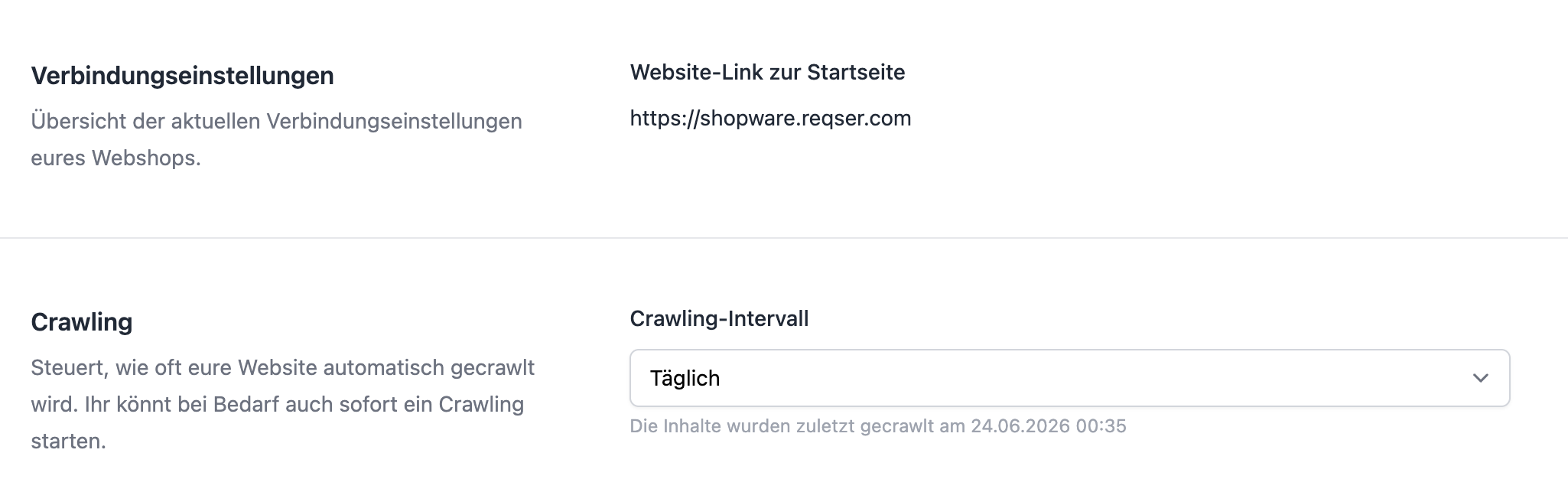
Crawling interval
You can specify how often the agent should search your store for new content. Our recommendation: Daily. This is the only way to ensure that your translations are always up to date in all languages - especially if you regularly update products, create new articles or change texts.
If the frequency is lower (weekly, monthly, etc.), new or changed content may only appear in the foreign languages with a delay. For most stores, "Daily" is therefore the best choice.
- Daily (recommended) - Ensures that all language versions are always up to date
- Weekly / Monthly / Yearly - Possible, but new and changed content appears in the foreign languages with a delay
- Never - Automatic crawling is deactivated. New content is not automatically recognized
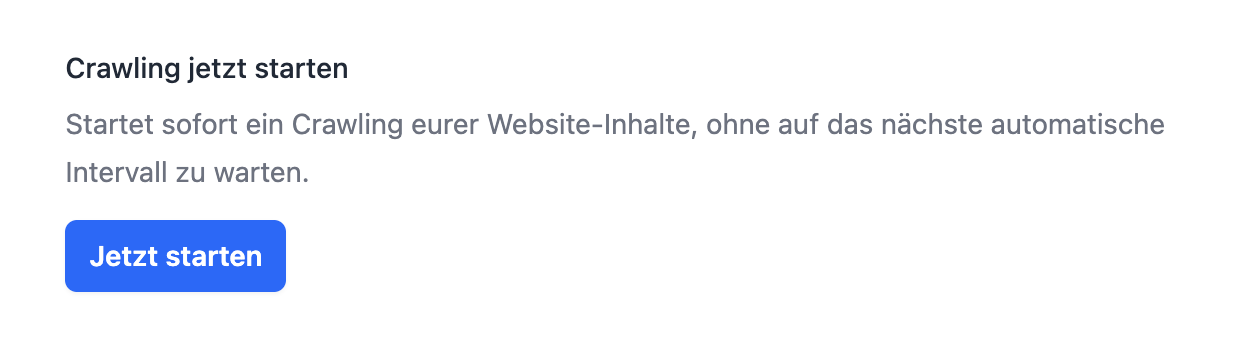
Start Crawling Now
You can trigger a crawl outside the regular interval at any time—for example, if you've just imported a lot of new products and don't want to wait for the next automatic crawl.
In the connection settings, you’ll find the “Start Crawl Now” button. If a crawl is already active, the button will be temporarily disabled.
Exclusions
If certain content should not be translated, you can specifically exclude it from recognition. This is useful, for example, for technical tables or content that should remain in the original language.
You can use the exclusions to exclude individual tables or entries from recognition.
3. the translation editor
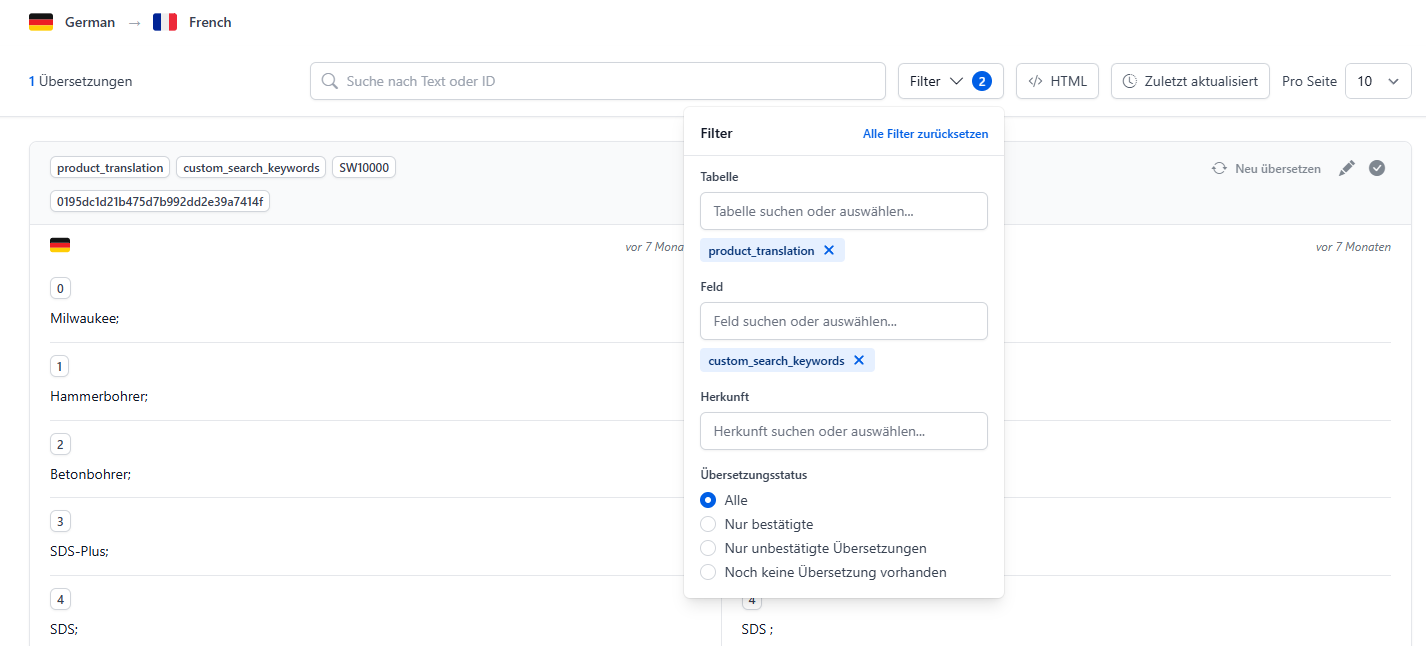
In the translation editor, you can see all of your store's translations at a glance. Here you can search, filter, manually edit and confirm translations.
You can access the editor via your website settings - there is a separate editor access for each foreign language.
Search and filter
Use the search function to quickly find specific translations. You can filter by table, field, source, and translation status—for example, to show only confirmed entries or texts that don't yet have a translation. Use "Last Updated" to sort by the most recently updated translations.
Switch HTML view
Some translations contain HTML formatting (e.g. bold print or links). You can switch between the plain text view and the rendered HTML view to see the content as it appears in the store.
Edit translations
Click "Edit" to open a translation in the edit modal. Alternatively, you can click "Retranslate" directly in the overview to trigger an automatic retranslation.
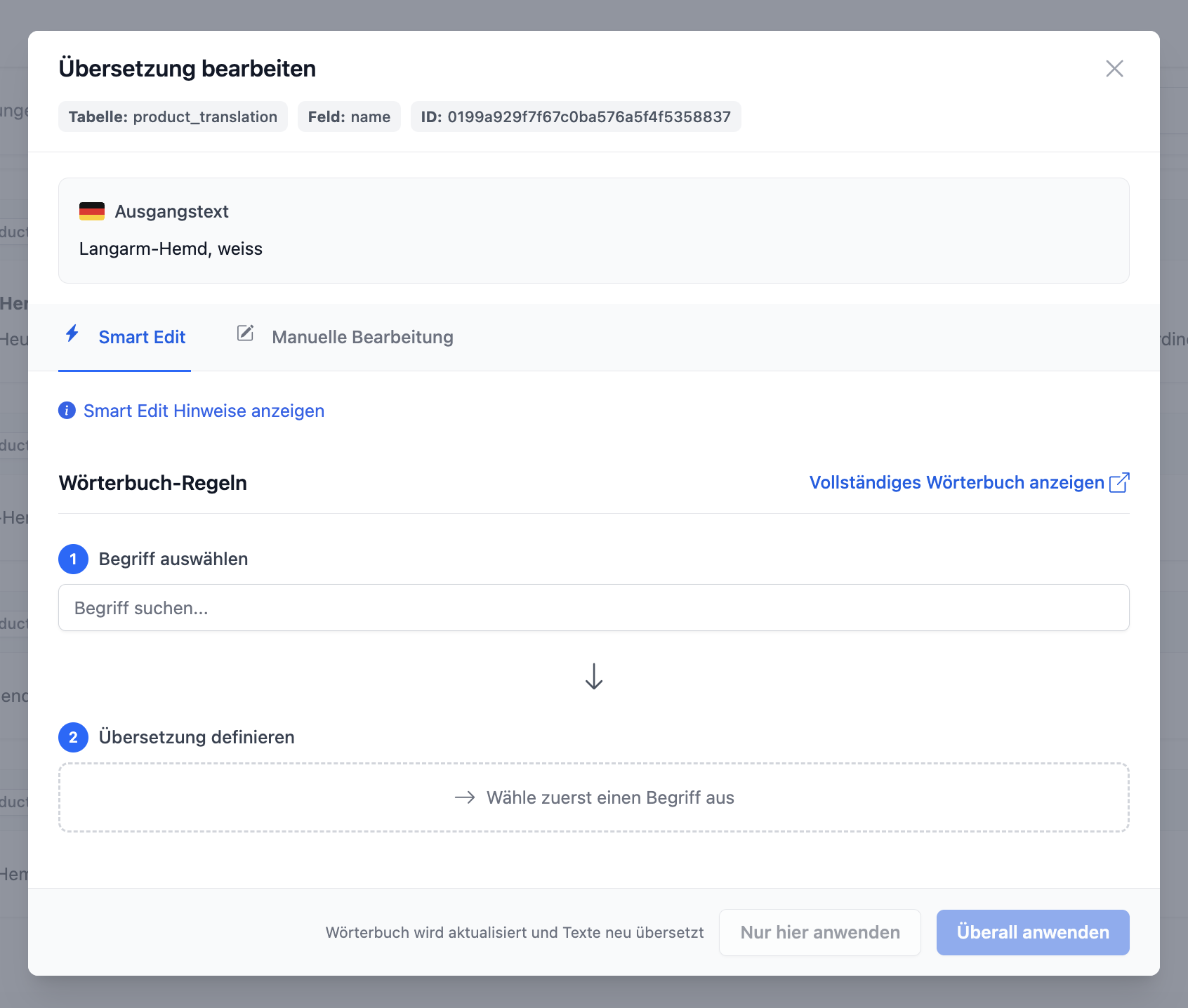
In the edit modal, you have two options:
• Smart Edit – Select individual terms from the source text and define how they should be translated. The rules are automatically added to the dictionary. You can choose whether only this entry or all entries containing these terms should be retranslated.
• Manual Editing – Edit the translated text directly in the text field. The change applies only to this specific entry.
After saving, the change is automatically applied to your store.
Confirm translations
If you use a proofreader, for example, you can mark checked translations as "confirmed". This allows you to keep track of which translations have already been checked. Important: If the source text changes in the basic language, the translation will still be automatically recreated.
Automatic retranslation in the event of changes
If a text in the basic language changes, the agent automatically recognizes this and retranslates all associated foreign language entries. So you don't have to worry about it yourself - changed content is automatically updated in all languages after the next check cycle.
Understanding origin
Each translation indicates its source. The main sources are: “Imported from your store” (already available in the store), “Manually edited” (edited in the editor), “Translated by Reqser” (automatically translated), and “Dictionary rule applied” (adjusted using a dictionary rule). Click the info icon next to the source to see a brief explanation of all values.
Import Existing Foreign-Language Texts
If you already have high-quality translations in your store, you can enable the option “Use existing foreign-language texts” in the settings. Reqser will then use your existing foreign-language texts instead of translating them anew—which saves on character costs.
It’s important to understand when this option applies:
• Only during initial setup: An existing store text will only be imported if no foreign-language translation yet exists in Reqser for that entry. This option is therefore primarily intended for the initial data entry.
• When the source text changes: If the text in the source language changes later, the foreign-language text is intentionally re-translated—regardless of whether this option is active. This ensures that your translations remain accurate in terms of content and do not diverge from the source language.
• You can recognize this import in the editor by the source “Imported from your store”.
Why You Shouldn't Edit Foreign-Language Texts Directly in Shopware
Reqser is the primary source for all recorded content. If you edit a foreign-language text directly in Shopware, that change may be overwritten during the next crawl—especially if the source text changes or a new translation is triggered.
Therefore, always make adjustments in the Translation Editor (manual editing or Smart Edit). From there, they’ll be properly applied to your store and will be preserved.
4. the dictionary (glossary)
The dictionary is one of the most powerful tools in Reqser. This is where you define rules for how certain terms should be translated - or whether they should not be translated at all.
Dictionary rules ensure that your brand, product names and technical terms are rendered consistently and correctly in all languages.
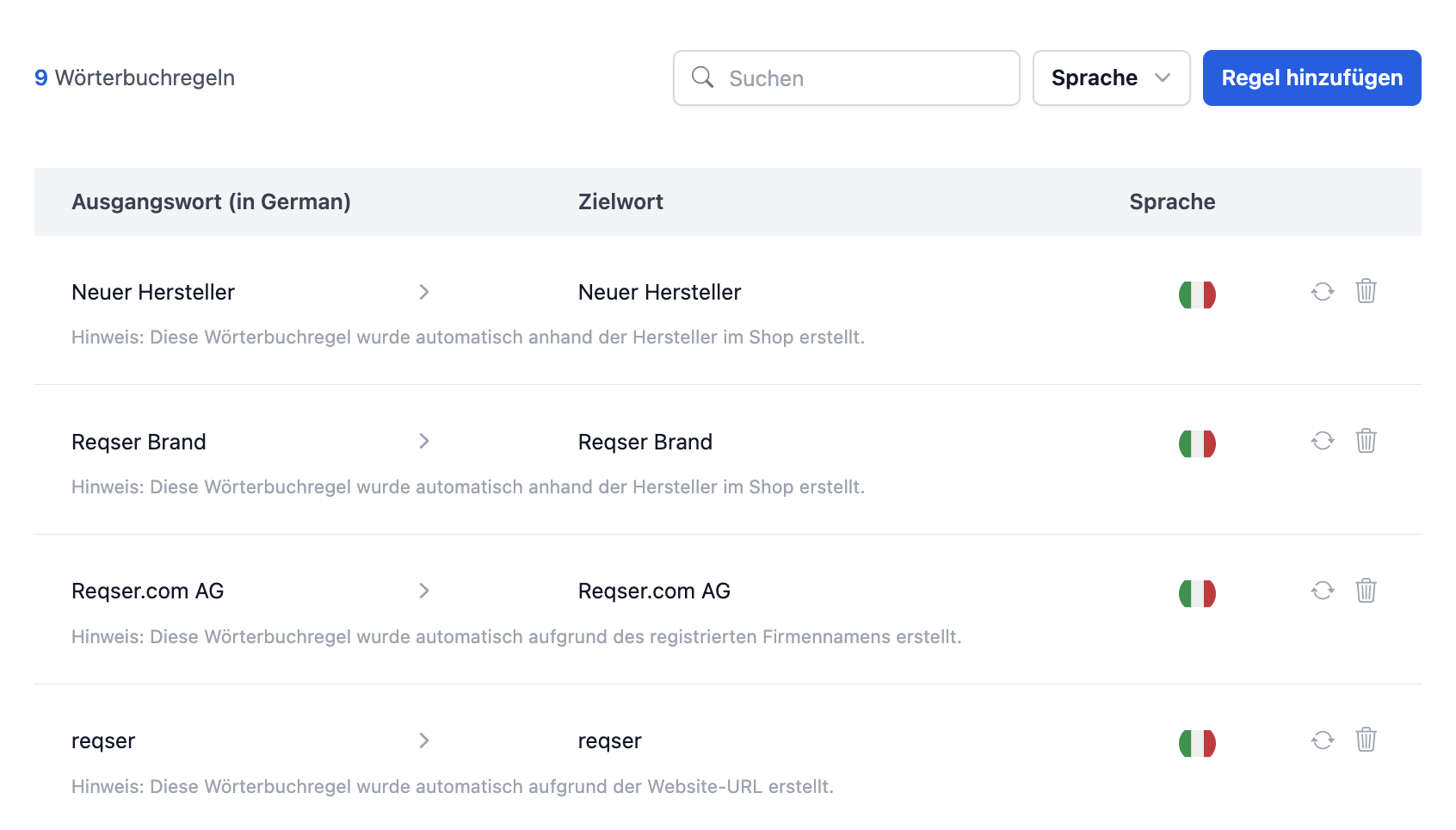
Always translate as...
Specifies that a certain term should always be translated in a certain way. This is ideal for brand names, technical terms or industry-specific expressions.
Example: "Weidezaun" should always be translated into English as "electric fence".
Never translate
Specifies that a term is to be retained in the original language and not translated. Useful for proper names, trademarks or technical terms.
Example: "Patura" is a brand name and should not be translated into any language.
Add rules
When creating a new rule, you enter the following information:
- Source word - The term in your basic language
- Target word - The desired translation (only for "Always translate as...")
- Languages - The foreign languages to which the rule should apply
When saving, you can also specify whether existing translations should be retranslated directly with the new rule.
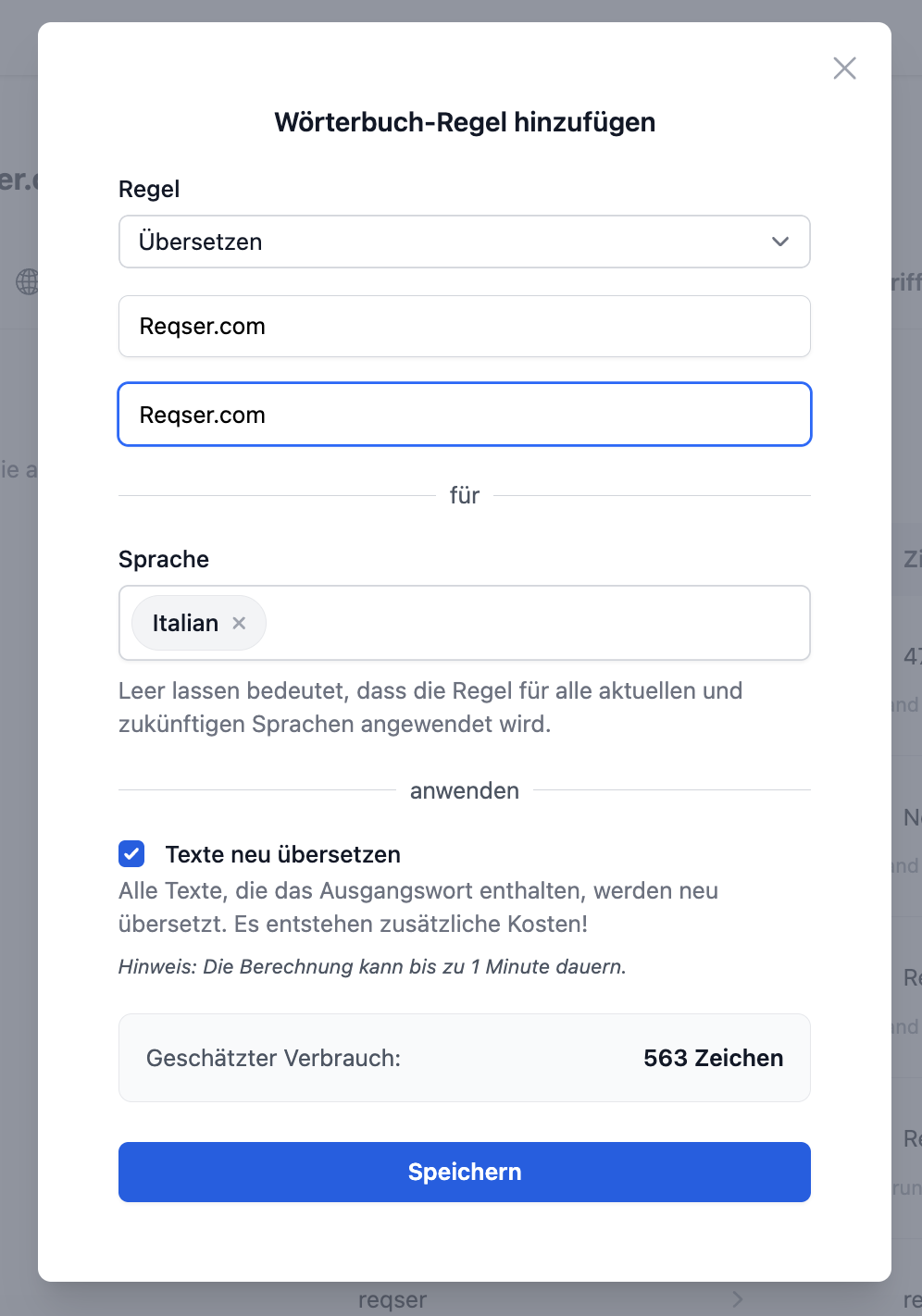
New translation for rule changes
If you change or delete a dictionary rule, you have the option of having all affected translations automatically re-translated. Reqser shows you an estimate of the affected entries and the associated character costs.
This ensures that your translations always comply with the current dictionary rules.
5. link handling
Link handling ensures that internal links in your translations point correctly to the respective language version of your store. Without this function, translated content would point to the German-language URLs - so your visitors would unexpectedly switch languages when they click.
The link handling runs fully automatically in the background and requires no manual configuration.
- Reqser detects internal links in your store content (e.g., in product descriptions or on the front end)
- For each foreign language, the links are automatically rewritten to the corresponding language-specific URL
-
The domains and paths are assigned correctly for each language (e.g.
/en/category/becomes/en/category/) - Link handling is carried out automatically after each translation
Link rules
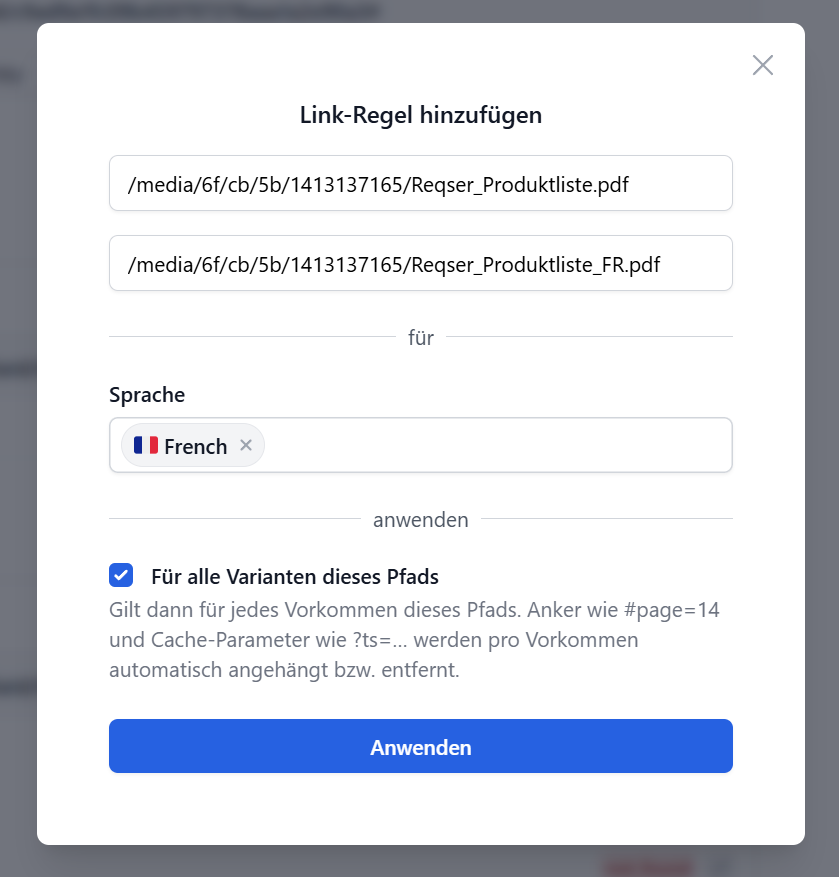
If automatic link handling cannot translate a link correctly or if you want a fixed mapping, you can create link rules. A rule defines: “If this original link appears in a specific foreign language, always replace it with this translated link.”
You can find link rules in the settings under Link Handling. There, you’ll see all processed links and can edit them in the overview. You can also use Add Rule to create a rule for a link that isn’t yet listed in the overview.
- Rules are defined per language - the same link can be translated differently in different languages
- Rules apply in the respective language wherever the link appears—in product descriptions, front-end pages, or URL fields
-
Unless otherwise specified, a rule applies only to the exact original link, including the anchor (
#page=14) and parameters (?ts=…). -
For all variants of this path, the rule applies to each occurrence of the same path. Anchors such as
#page=14remain at their respective occurrences, while cache parameters such as?ts=…are removed - When you save or edit a rule, the relevant translations in Reqser are updated in the background; your online store will typically receive the updated text during the next crawl
- When you delete a rule, only the rule is removed—existing translation texts are not automatically reset as a result
- Rules take precedence over automatic link resolution—if a rule exists, it is applied
Use existing image translations
If you’ve already set up your images in multiple languages in the store yourself, Reqser recognizes these language versions, links to them in the foreign-language entries, and doesn’t create them again. The synchronization automatically checks for new and modified content during each run. To ensure this works, the images must follow a specific naming convention:
-
Base language: File name without a language suffix or, optionally, with a base language suffix, e.g.,
SD-Feb-2026_Kuechen_1440x480orSD-Feb-2026_Kuechen_1440x480_DE -
Foreign language: same base name plus
_{language_code}, e.g.,SD-Feb-2026_Kuechen_1440x480_FRfor French -
If the base language entry has a language suffix (e.g.,
_DE), it is automatically recognized and replaced with the foreign language suffix - The folder in which the foreign-language images are stored in Shopware doesn't matter—they are assigned based on the filename
- The file type doesn't matter either—the source and destination images can have different file formats
6. language-based redirects
By default, Reqser sets up language-based redirects for your online store. Visitors whose browser language matches one of your foreign languages are automatically redirected to the appropriate language domain—without having to manually change the language. This improves the user experience and can significantly increase conversion rates in your foreign-language versions.
Detection is based on the browser language (Accept-Language), not on the visitor’s location. Reqser does not use Geo-IP for redirection—a German-speaking visitor in the U.S. should see the German version just as someone in Switzerland would.
- On the homepage of your default language domain, the Reqser plugin checks the visitor's browser language
- If the language matches an active foreign language, Reqser will redirect you to the corresponding language domain of your sales channel
- If the language does not match a foreign language, the visitor remains on the default language
- If someone goes directly to a subpage (e.g., a product URL from Google), no automatic redirect occurs—the link leads directly to the page being accessed
- Which visitors are redirected again later depends on the selected redirection mode (see below)
Requirements
For the forwarding to take effect in live operation, the following conditions must be met:
- The Reqser plugin is installed and active in Shopware (version 1.1.0 or later)
- Automatic redirection is enabled in Reqser under Redirect (default: on)
- Your subscription is active—redirecting is disabled in demo mode
- There is a corresponding sales channel domain for each foreign language, which Reqser manages
Forwarding Modes
Under Redirect in the website settings, you can specify how often and how strictly Reqser redirects visitors to the appropriate language. The default mode is often (recommended). Advanced options (tolerance periods, limits, alternative language) are available starting with plugin version 1.5.3 or higher.
often (recommended)
Redirects to the home page if the browser language does not match the current domain. After a manual language change in the store, the visitor's selection is respected—the system will not automatically redirect again for one hour. After that, visitors can be redirected to the appropriate language on the home page again. Recommended for most stores.
sometimes
Redirects with session limits: The number and timing of redirects per visitor session are limited. After a manual language change, the selected language remains locked in for a longer period (up to 24 hours). This is useful if you prefer less frequent redirects.
rare
A maximum of one redirect per session. For online stores that want to give visitors as much control as possible over their language selection.
always (Warning)
Redirects very strictly—a manual language change can be overwritten immediately. Depending on the store's configuration, this can lead to an endless loop. Recommended for testing purposes only; not for live operation.
Manual Language Selection
If a visitor changes the language in the store themselves (using the language switcher), Reqser remembers this selection—either for a limited time or for the entire session, depending on the mode. In often mode, the manual selection typically lasts one hour; after which visitors can be redirected based on their browser language on the home page.
In oft mode, Reqser can also permanently redirect visitors to the last selected language for as long as the session is active—regardless of the browser language.
SEO and Deep Links
Redirects only work on the home page. Search engines and shared links should therefore always point directly to the correct language URL—not via the home page of the default language, which triggers a redirect.
- No Geo-IP redirect: The language is based on the browser's language, not the visitor's country
- Deep links remain stable: Anyone who opens a product or category URL from the search results will be taken directly to that specific URL without being redirected to the homepage
- Hreflang remains important: Redirects are no substitute for correct hreflang tags and language versions—the two complement each other
Adjust Settings
You can find all the options under Website Settings → Redirect in Reqser. There, you can enable or disable the redirect, select the mode, and—starting with plugin version 1.5.3 or later—fine-tune advanced parameters. Below the settings, you’ll see the redirect test with results for each language.
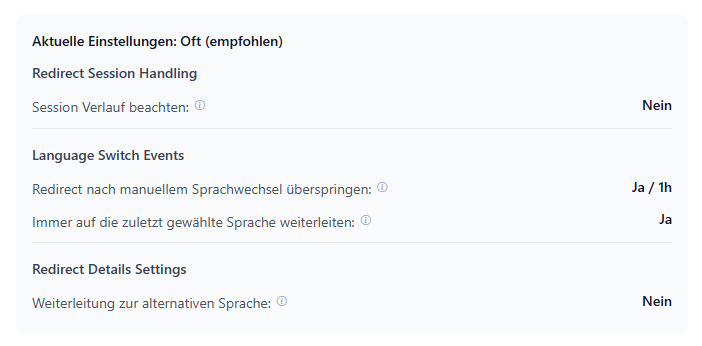
Redirecting is enabled by default. If you disable it, visitors will remain on the domain they are visiting—without automatic language detection.
8. frequently asked questions
Answers to the most frequently asked questions about Reqser, the connection, translations and image descriptions can be found on our FAQ page.
To the FAQ pageDo you have further questions or need support? Contact us or your agency at any time - we will be happy to help you.